

Identifying and Eliminating Energy Vampires in Your Home
Energy vampires are any device that draws electricity even when you think it’s “off.” Remote-ready electronics, instant-on displays, power bricks that feel warm to the touch—these sip power 24/7 to maintain memory, network connections, or quick-start features. Individually, the draw can seem trivial (a watt here, three watts there), but across a home packed with chargers, set-top boxes, and smart widgets, those little sips turn into a steady leak.
Typical culprits:
- TV and streaming boxes that wait for the next click
- Game consoles in “rest” mode
- Desktop computers, monitors, and printers idling between tasks
- Smart speakers and voice assistants
- Cable/DSL/fiber gateways and Wi-Fi mesh nodes
- Microwaves, ovens, and coffee makers with clocks and “ready” lights
- Garage door openers and networked thermostats
- Chargers left plugged in (laptops, toothbrushes, cameras)
Why it matters: the compounding effect
Standby power hides in the background, so it’s rarely budgeted for. Yet a handful of 3–8 W devices running all day can add up to dozens of kilowatt-hours each month. That’s money you never intended to spend—and power plants you never meant to keep busy. Cutting vampire loads is one of the easiest ways to lower bills without sacrificing comfort.
How to spot energy vampires (without special gear)

- The touch test: If a power brick or device is warm when “off,” it’s likely sipping energy.
- LED logic: A glowing standby light is a hint that circuits remain awake.
- Menu check: Look for “Fast Start,” “Instant On,” “Network Standby,” or “Always Listen” modes. These are convenience features you can usually dial back.
- Schedule awareness: If you only use something a few hours a week (a photo printer, for instance), it’s a candidate for switched control.
How to measure them (with simple tools)
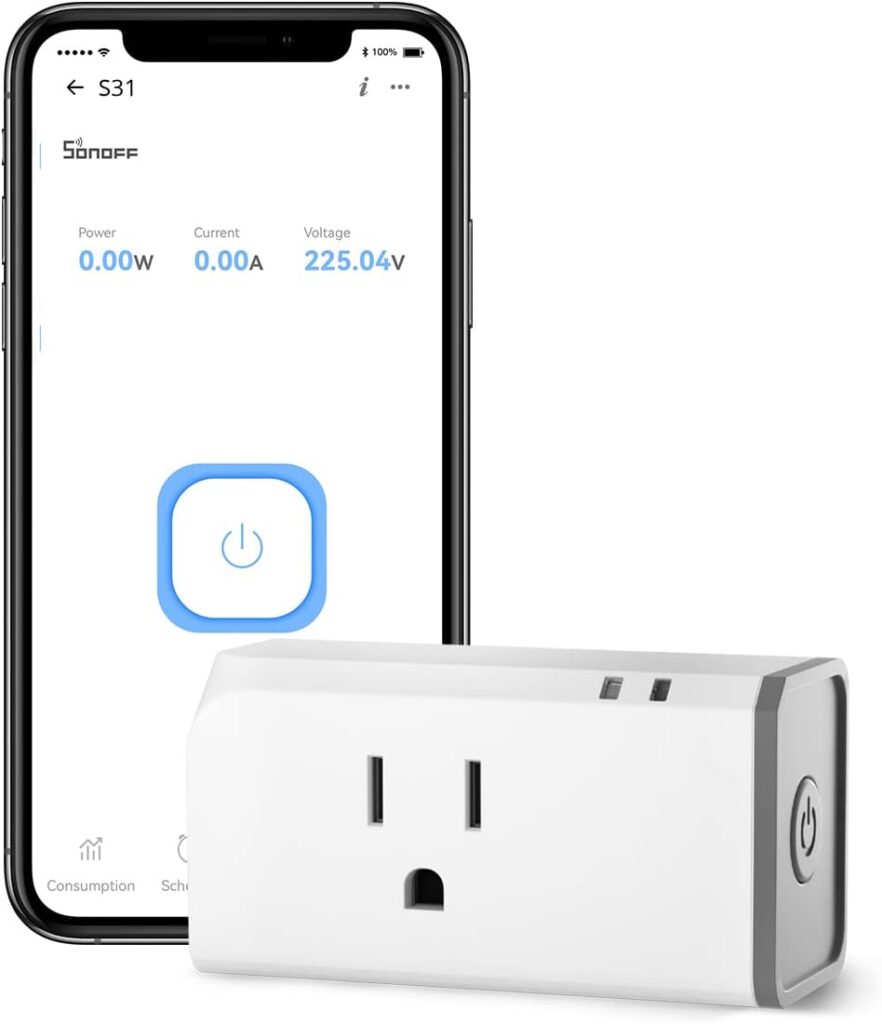
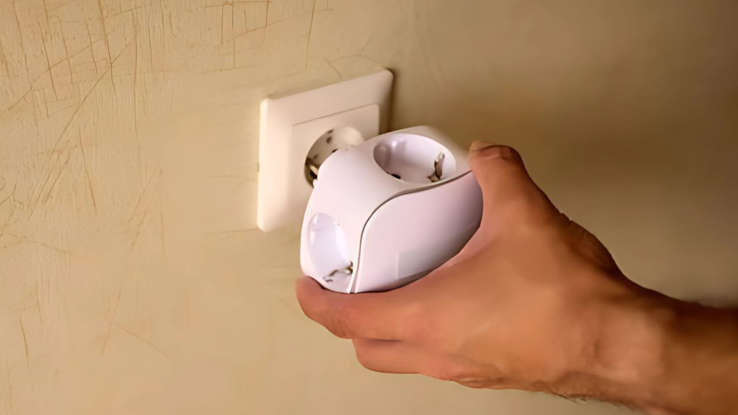
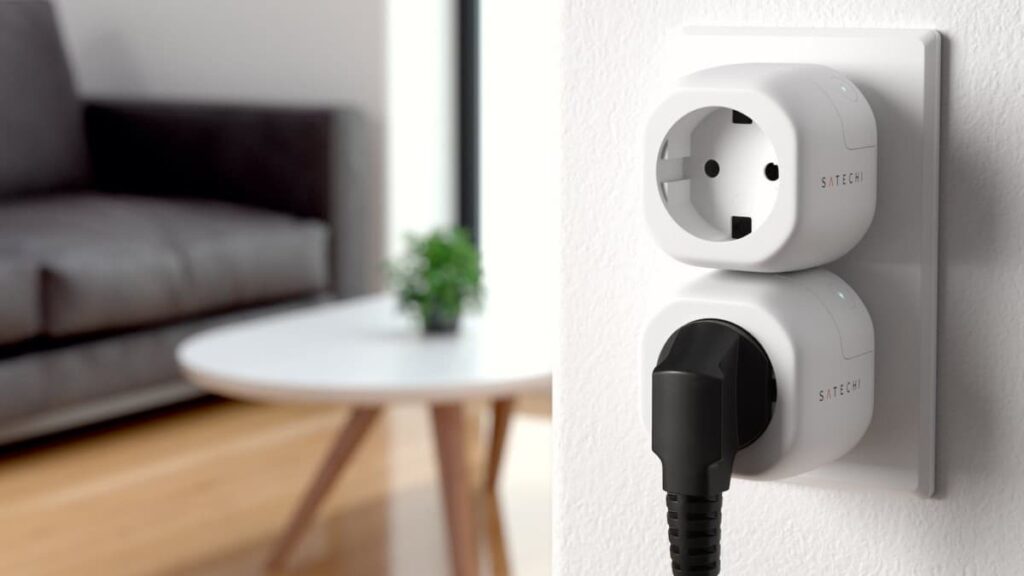
- Smart plugs with energy monitoring show real-time and cumulative consumption. Plug your device in for a day or two to learn its idle draw.
- Kill-A-Watt-style meters are inexpensive and accurate for single devices.
- Whole-home monitors can reveal constant baselines; drop the baseline by switching off rooms or circuits to see which loads vanish.
Quick wins you can do in a weekend
1) Tame the entertainment center

- Put the TV, streaming box, soundbar, and console on a smart power strip.
- Use an “activity master” outlet (e.g., the TV) that powers accessories only when the TV is on.
- Disable Instant On and Quick Start features in TVs/consoles if near-instant power-up isn’t essential.
2) Optimize your home office
- Computers: enable sleep after 10–20 minutes and hibernate for laptops when the lid closes.
- Monitors: set auto-off after inactivity.
- Printers & scanners: connect to a switched strip; turn them on only when needed.
- Docking stations and speakers: move to smart plugs with schedules aligned to work hours.
3) Kitchen and laundry tweaks

- Microwaves and coffee makers with clocks draw modest standby power. If you don’t rely on scheduled brewing or timers, plug them into a switchable outlet.
- Washers/dryers with network features: disable Wi-Fi standby if you never use remote start.
4) Charger discipline

- Unplug rarely used chargers or park them on a multi-port USB-C charger with a power button.
- Avoid daisy chains of bricks. One efficient hub beats five always-on mini-supplies.
5) Smart home sanity check

- Audit voice assistants and smart displays. If you have multiple in earshot, keep one primary and mute or relocate the rest.
- For sensors and bulbs, verify that firmware power optimizations are enabled and unnecessary bridges are removed.
Device-by-device guide
TVs & streaming boxes:
- Turn off “Fast Start” / “Quick Start.”
- Prefer wired Ethernet for set-top boxes; some boxes idle lower on Ethernet than Wi-Fi.
- If you stream via a smart TV, consider removing idle external streamers.
Game consoles:
- Set “Rest Mode” to low-power or off when not downloading updates.
- Schedule auto-power-down after short inactivity.
Computers & monitors:
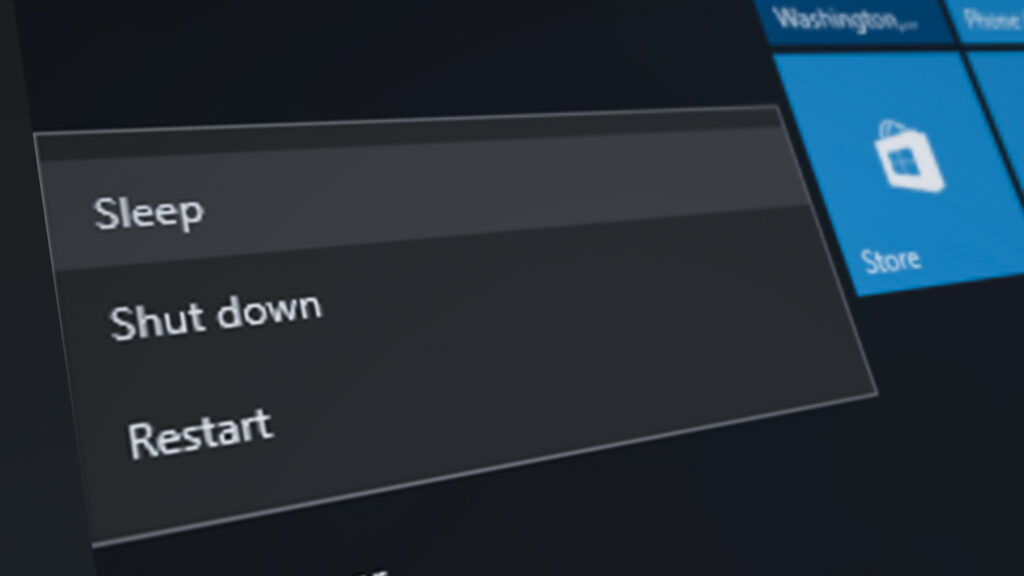
- Use Sleep (S3) and Modern Standby judiciously; hibernate overnight.
- Disable Wake on LAN unless required.
Networking gear:
- Consolidate: one gateway + Wi-Fi may replace a separate modem, router, and switch.
- Schedule guest SSIDs off outside visiting hours.
Audio gear:
- Amplifiers can consume tens of watts at idle. Use auto-sense or a smart strip so they truly power down.
Appliances with displays:
- Some ovens and refrigerators keep bright displays alive 24/7. Look for “display off” or dim after” settings.
Smarter purchasing: what to look for

When replacing electronics, check for:
- Low network standby (<2 W) in specs or energy labels
- Auto power-down and configurable sleep timers
- External power supplies that meet efficient standards (look for Level VI or better)
- All-in-one hubs that reduce the number of always-on boxes
A rule of thumb: if a feature keeps a device “ready in an instant,” it likely uses more standby energy. Decide whether that speed is worth the cost.
Estimating savings: a quick calculator
If a device idles at 5 W continuously:
- Daily energy: 5 W × 24 h = 120 Wh = 0.12 kWh
- Monthly (30 days): 3.6 kWh
- Yearly: 43.8 kWh
Multiply by your local electricity rate. Even at modest rates, trimming a handful of 5–10 W vampires can save noticeable money each year—especially in homes with lots of electronics.
Myths to retire
- “Standby uses almost nothing.” Not always. Some legacy set-top boxes and audio amps idle high.
- “Smart plugs waste more than they save.” Quality smart plugs typically draw ~0.5–1 W—far less than the devices they help manage.
- “Turning things fully off wears them out.” Modern electronics are built for power cycling within reasonable limits.
Renters vs. homeowners: practical paths

- Renters: Favor portable fixes—smart plugs, switched strips, and device settings. No wiring changes required.
- Homeowners: Consider adding wall switches for hard-to-reach outlets, or using sub-metering to find persistent loads.
Seasonal and weekly mini-checklists

Every week (5 minutes):
- Scan for chargers left plugged in.
- Shut down consoles and PCs after weekend use.
Every season (15–20 minutes):
- Revisit TV/console/PC settings after firmware updates.
- Audit guest-room devices that sit idle most of the year.
- Check that smart plugs’ schedules still match your routine.
For small offices and studios

- Put printers, labelers, and laminators on shared switched strips.
- Schedule conference displays and meeting-room gear to power down after hours.
- Standardize on efficient laptop chargers and centralized charging stations.
Troubleshooting without calling a repair tech

If an appliance behaves oddly after changes (e.g., a smart feature is disabled), restore the previous setting and test again. Remember: Appliance Rescue does not provide repair services. Instead, the site is dedicated to Expert Guides, Appliance Tips, and Troubleshooting Advice to help you solve common issues on your own. Explore more at Appliance Rescue for step-by-step walkthroughs, safety notes, and DIY-friendly diagnostics.
If you have questions about specific guides or want to suggest a topic, feel free to Contact us.
A sample “energy vampire” audit (room by room)
Living room
- TV (disable Quick Start), streaming box (on smart strip), soundbar (auto-sense), game console (low-power rest).
Home office - Laptop dock (scheduled smart plug), monitor (sleep after 10 minutes), printer (switched strip).
Kitchen - Microwave clock (leave on if needed; otherwise switched outlet), coffee maker (buttoned power when not scheduled).
Bedroom - Smart display (screen off at night), chargers consolidated on a single switched hub.
Hall/garage - Router/modem (consolidated), garage opener (no add-ons on its outlet), camera base stations reviewed for low-standby modes.
Environmental bonus

Every kilowatt-hour avoided reduces upstream generation and associated emissions. Cutting standby waste is one of the rare climate actions that takes minutes, costs little, and doesn’t feel like a sacrifice.
Key takeaways
- Standby loads are small individually but meaningful in aggregate.
- Settings, smart strips, and smarter purchasing deliver outsized returns.
- Measure a few devices to learn your baseline; then target the worst offenders first.
- For non-repair guidance, deep-dive tutorials, and safe DIY troubleshooting, visit Appliance Rescue or contact us.